How to Read a Digital Authentication Certificate | Details and Verification
Read & Verify Certificates
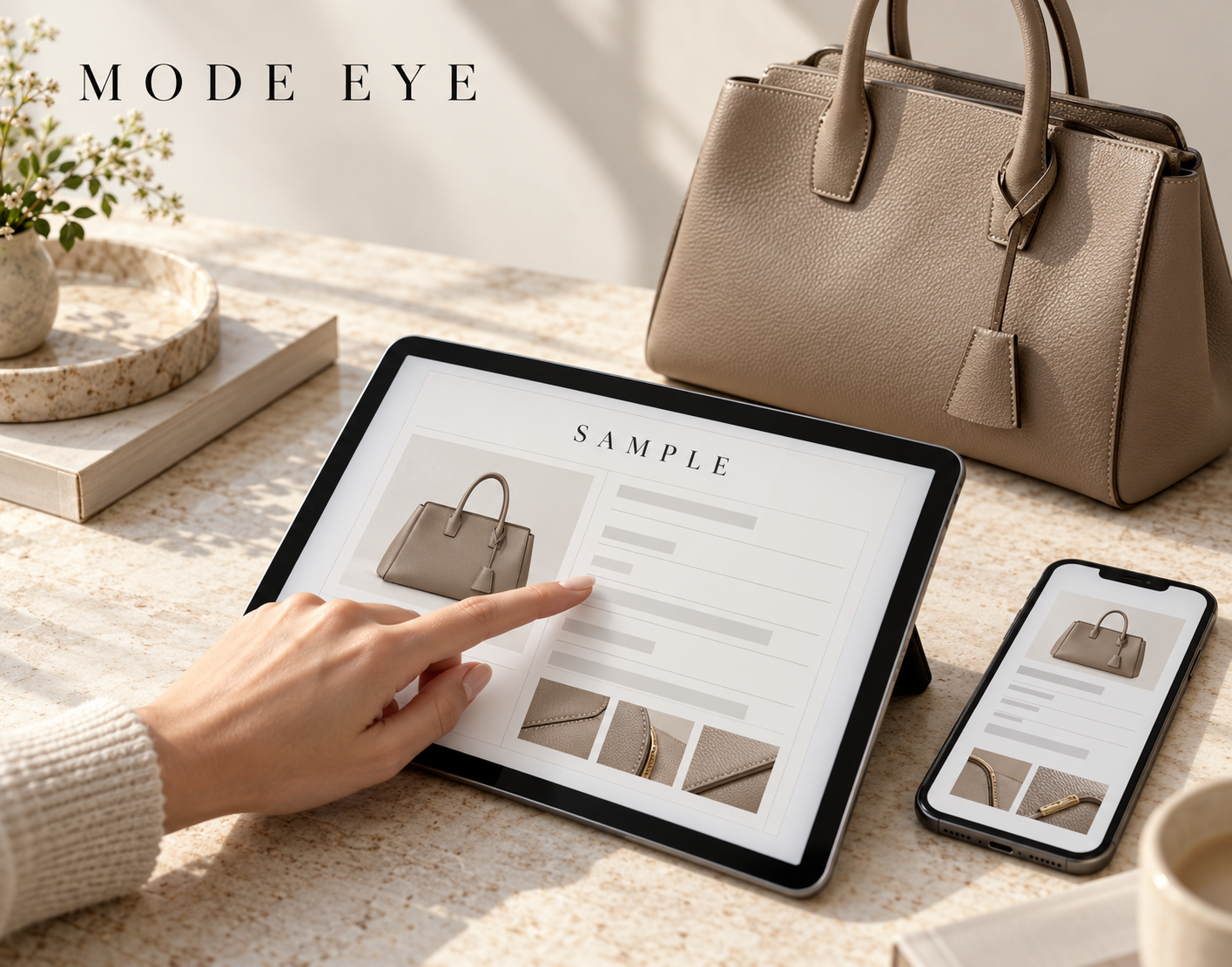
When reviewing a digital authentication certificate, check which item it describes and whether the certificate is currently valid, as well as the assessment it records.
MODE EYE issues certificates through its system when a professional authenticator assesses an item as genuine and the issuance requirements are met. Each certificate records product information and assessment details at the time of issuance. This guide explains the main fields and how to check the online record. Certificates & Verification
Start with the Certificate Number, Issuer, and Issue Date
Begin by checking these fields:
Certificate number: Used to look up the record. Compare the number on your certificate with the online result.
Issuer: Identifies the organization that issued the certificate.
Issue date: Shows when the certificate was issued.
The fields included may vary between certificates. Review these details together rather than relying on the certificate number alone. Certificate Details
Match the Brand, Category, and Product Information
Check whether the listed brand, category, and product details match the item you are reviewing.
The product photograph on the public verification page also helps with this comparison. If the number matches but the product details or photograph appear inconsistent, contact the service operator before drawing a conclusion.
The aim is to confirm both that a certificate record exists and that it corresponds to the item concerned.
Read the Assessment as a Record at the Time of Issuance
The certificate records the assessment at the time it was issued. Read its wording carefully to understand what information it contains.
Authenticity and present condition are separate considerations. When considering a purchase, also review current product photographs and descriptions of scratches, stains, and wear. Issuance and Recorded Information
Check the Current Status by Number or QR Code
To verify a MODE EYE certificate:
Scan its QR code or open the certificate verification page.
Enter the certificate number if prompted.
Compare the displayed number, product details, and photograph.
Check the certificate’s current status, such as valid or invalid.
Even if you have saved a certificate image or PDF, check the current online record. Verify a Certificate
Understand Reissuance and Public Photograph Limits
Certificates may be invalidated or reissued under a new number. If the reason for an invalid status or its relationship to a reissued certificate is unclear, contact the service operator. Do not infer the item’s authenticity from that status alone.
The public verification page displays one product photograph selected by the authenticator. Other submitted authentication photographs and internal notes are not public, so the page does not show the complete assessment materials. Reissuance and Public Information
Read the certificate number, product details, assessment, and current status together. Resolve any discrepancies or unclear information before relying on the record for your next decision.